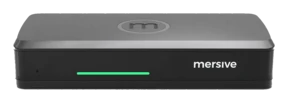
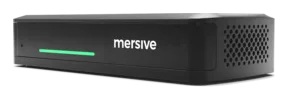


To cast to a TV in a meeting room, you need more than a wireless signal. You need the source device to find the correct display, a permitted connection path, a clear way to start and end the session, and a room system that behaves predictably for both employees and guests. Consumer casting can work for an occasional presentation. A business-ready experience must work repeatedly across rooms, networks, and device types.
This guide is written for the IT and AV teams who make casting work: the paths available - from consumer TV casting and native protocols such as AirPlay and Google Cast to browser-based and meeting-platform sharing - what separates a business-ready deployment from a living-room setup, and what to validate before standardizing.
- Meeting-room casting is a platform decision: the right solution gives employees and guests approved sharing paths that work on the first try, in every room, without consumer workarounds.
- Consumer casting can work for an occasional presentation; a business-ready experience has to work repeatedly across rooms, networks and device types.
- Casting needs the source to find the correct display, a permitted connection path, a clear way to start and end, and predictable behavior for guests.
- The exact buttons and supported methods depend on the room platform, source device, network policy and approved configuration.
- Native casting (AirPlay, Google Cast), browser-based sharing, meeting-platform sharing (Microsoft Teams, Zoom) and a dedicated transmitter each suit a different participant and a different room.
Why consumer TV casting becomes unreliable at work
The problem is rarely the act of sending pixels to a screen. The problem is the environment around it. Consumer products are optimized for a small number of known users, a trusted home network, entertainment apps, and one nearby screen. Meeting rooms have different conditions.
- Mixed devices: Employees and guests bring different operating systems, browsers, security settings, and device generations.
- Multiple networks: The room, employee laptop, and guest phone may be separated by network policy, making local discovery inconsistent or intentionally unavailable.
- Shared spaces: A room display cannot depend on a personal streaming account, personal device, or remembered pairing from a previous user.
- Sensitive content: Users need visible session controls and predictable cleanup so confidential information does not remain on screen after a meeting.
- Support at scale: IT and AV teams need configuration consistency and fleet visibility rather than a different workaround in every room.
- Collaborative workflows: Business meetings often need several people to compare content, not one person to control an entertainment stream.
A workaround can feel fast when it succeeds once. It becomes expensive when each room, guest, and device needs a different set of instructions.
Choose the right casting path
Four families of paths put content on a meeting-room TV: native wireless casting (the protocols built into devices, such as AirPlay and Google Cast), browser-based sharing, meeting-platform sharing through services like Microsoft Teams or Zoom, and a dedicated transmitter or cable. Each suits a different participant and a different room.
Native wireless casting
A supported native protocol such as AirPlay or Google Cast can be the most familiar route because the share control is built into the device. It works best when the device, receiver, and network policy are compatible. In a managed business environment, verify discovery behavior, network requirements, session controls, updates, and the exact media types the protocol supports.
Browser-based sharing
A browser path can reduce the need to install software and can give guests a consistent entry point. The quality of the experience depends on supported browsers, device permissions, network access, content type, and the platform's implementation. Treat 'no app' as a scoped deployment claim, not a universal promise.
Meeting-platform sharing
When remote participants are central to the meeting, sharing through the approved video-conferencing platform - Microsoft Teams or Zoom, for example - may be the right path. It sends content into the online meeting, but the room still needs an understandable way to handle local display, audio, camera, microphone, and control.
Dedicated transmitter or cable
A managed cable or dedicated transmitter can create a predictable physical workflow. It also introduces items to store, charge, replace, sanitize, and support. Evaluate these options by room type rather than assuming one method should cover an entire fleet.
What a business-ready TV casting system should do
For an occasional huddle space, basic casting may be enough. For a repeatable room standard, evaluate the system as a collaboration and operations platform.
- Make the destination obvious: Display a clear room name, connection path, and session status.
- Support the device mix: Document the operating systems, browsers, protocols, and content types that matter to your workforce and guests.
- Provide a guest path: Give visitors a bounded workflow that does not depend on personal accounts or broad access to the corporate network.
- Respect network segmentation: Work with the organization's security design and document where discovery, signaling, content, and management traffic flow.
- Support collaborative handoff: Let participants change presenters or compare sources without repeatedly rebuilding the meeting context.
- Integrate with the room: Fit the display, audio, camera, microphone, control, and video-meeting standards selected for each room type.
- End cleanly: Clear session content and controls when participants leave or the meeting ends.
- Scale administration: Give IT and AV teams a consistent way to configure, monitor, update, and support rooms across locations.
How to cast a laptop to a TV
Enabling laptop-to-TV casting across a fleet is a solution-selection question, not a user-instruction one: the specific steps vary by platform, so the goal is choosing a platform whose steps users never struggle with. Managed Windows and macOS laptops are best served by paths that need no setup on the user's part - a supported native protocol where policy allows it, or a browser-based share that works the moment the laptop can reach the room. Evaluate which combination covers the organization's device mix with the fewest exceptions, and what the fallback is when the first path fails.
Whatever platform is standardized, validate the details that decide day-to-day success: window versus full-desktop sharing (and notification hygiene on shared screens), motion and video performance in the actual room rather than a demo network, audio routing to the room's speakers, and what a failed connection looks like to a presenter standing in front of colleagues.
How to cast a phone or tablet to a TV
Phones and tablets reach a room display through two families of paths: the native casting built into the operating system - AirPlay on Apple devices, Google Cast on Android - and the platform vendor's own app or browser workflow. Native protocols feel effortless but assume the phone and receiver can discover each other, which segmented business networks often prevent by design. When evaluating a platform, ask which mobile paths it supports on which network segments, and what a guest's phone can do when local discovery is blocked.
Permissions are the other differentiator: mobile operating systems gate screen recording, local-network access and microphone use behind prompts, and every prompt is a chance for a presenter to stall. Prefer solutions whose mobile path requires the fewest permissions, and document the expected prompts so the help desk can answer them without a room visit.
Troubleshooting meeting-room casting
- Rooms that do not appear on user devices. What it usually means: discovery blocked across network segments, not a broken receiver. Deployment answer: standardize a connection path that works without local discovery (a room code, address, or browser join), and document which network segments can reach which rooms.
- Image without audio. What it usually means: platforms and native protocols differ on whether a share carries audio, and rooms differ on where it should land. Deployment answer: decide the audio route per room type, standardize it, and test it with real video content during the pilot.
- Video stutter in real rooms. What it usually means: the platform was validated on a clean demo network rather than production wireless. Deployment answer: pilot with motion content in the worst wireless conditions the fleet owns before standardizing.
- Sensitive content appearing mid-share. What it usually means: full-desktop sharing is the default and presenters have no visible session indicator. Deployment answer: prefer platforms that make window or tab sharing easy and session status obvious, and say so in room instructions.
- Guests who cannot connect. What it usually means: network policy doing its job against a platform that assumed one flat network. Deployment answer: a designed guest path (browser join, cross-network sharing), not exception tickets against the firewall.
- Displays that keep the last meeting's content. What it usually means: session cleanup depends on a manual step someone forgets. Deployment answer: evaluate whether the display clears to its idle state on its own when the meeting ends.
From casting to collaboration with Mersive Polaris
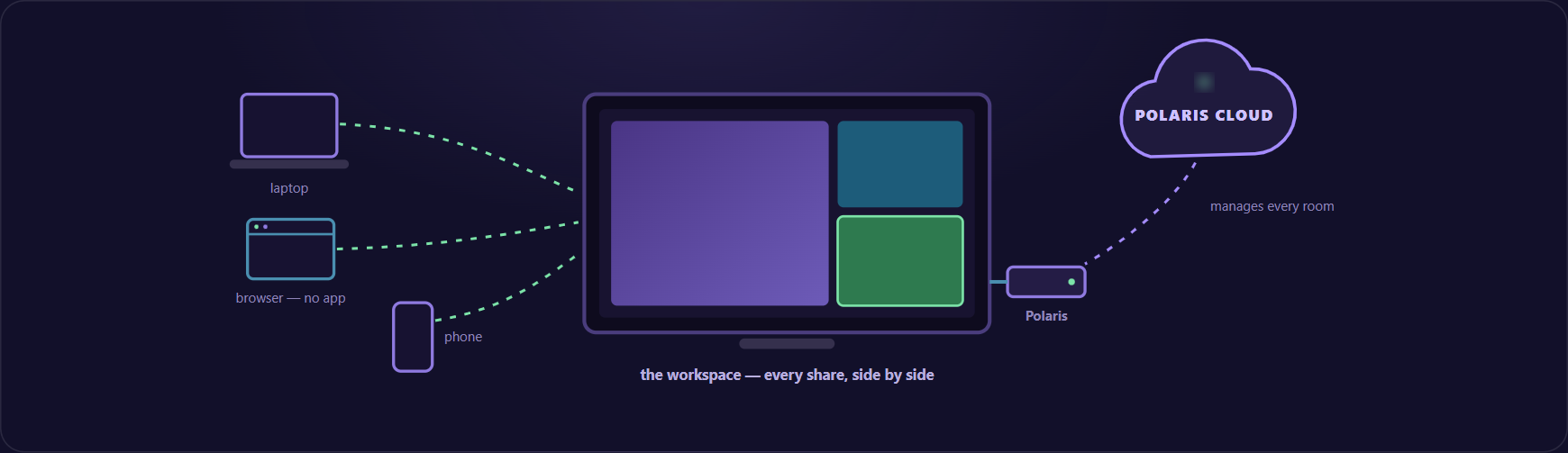
Casting answers, 'How do I put my content on that screen?' Polaris is designed to answer the next question: 'How does the room help the group work with content?' It treats the display as a shared workspace that can receive contributions through flexible, approved paths and remain managed as part of a broader room fleet.
That room-centered model can reduce dependence on consumer workarounds. A participant can follow a familiar or browser-based path supported by the deployment. The room can organize more than one contribution for comparison. IT and AV teams can manage the environment through a common cloud experience rather than treating each TV as an isolated endpoint.
Can I cast to a TV without Wi-Fi?
Some native protocols can form direct device-to-display connections without joining the room network - AirPlay and Miracast both have peer-to-peer modes - and a wired input remains the fallback. For a managed fleet, the better question is whether the platform works with the network as designed: a solution that properly supports segmented and guest networks removes most of the reasons anyone asks for a no-Wi-Fi workaround.
Can I cast to a TV without installing an app?
Yes, on two paths: native protocols already built into the operating system (AirPlay, Google Cast, Miracast where supported), and browser-based sharing where the platform provides it. For IT, 'no app' means nothing to package, approve, patch, or support on guest devices. Confirm the supported browsers, content types, and network requirements for each path before publishing a broad no-app promise in room instructions.
Why can I cast at home but not in a meeting room?
Business networks often separate guests, employees, and room devices. Device discovery may be limited by design, and managed devices may restrict certain protocols. The meeting room should provide an approved connection path that works with those controls.
What is the difference between casting and mirroring?
Mirroring usually reproduces the source device's screen. Casting often sends or hands off selected media to a receiver while the source retains control. Product behavior varies, so test the actual presentation, video, audio, and collaboration workflows you need.