
Screen sharing for healthcare meeting and teaching rooms
Bring staff presentations, teaching materials and remote colleagues into a shared room workspace. Choose the hardware for the room, manage it in Polaris Cloud, and give IT and security reviewers a clear place to start.
Polaris requires access to Mersive’s cloud. Include that connection in your deployment review.
Plan for the meeting, the network and the review
Department meetings, teaching sessions and hybrid discussions have different room needs. Start with how people share, then check the network requirements and security evidence.
Staff and visiting speakers bring their own laptops and material. Switching presenters should be part of the room plan.
Network segmentation affects how a presenter reaches the room display. Your access policy needs to be part of the evaluation.
IT, security and procurement need the scope and dates behind a vendor’s claims.
An administrative meeting room and a teaching room may need different displays or conferencing equipment.
The same platform, sized for the room
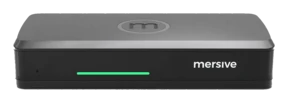
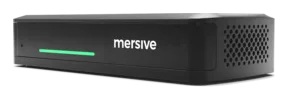
Essentials runs the same Polaris software as Pro: the same workspace, the same cloud, the same security posture. The differences are the chassis, not the platform.
- Share presentations and teaching material in the Polaris workspace.
- Use wireless BYOM to connect the room’s camera and microphone to the presenter’s laptop call.
- Link is a software bridge between the laptop in BYOM and the Pro, and the Pro is what controls the room's cameras and peripherals. That is why Link needs a Pro.
- Check display, wired-input and peripheral requirements on the Pro product page.
- Use the same Polaris workspace, browser sharing and cross-network capabilities as Pro.
- Manage the room in the same Polaris Cloud portal.
- Use the same software security controls as Pro.
- Choose Pro when you need wireless BYOM or Polaris Link. Those depend on Pro’s room-peripheral connection.
Compare specifications and current buying options on the product pages. Room hardware determines the fit; a software license does not turn Essentials into Pro.
Build the review around the intended use
Start with the rooms you plan to equip and the information people will share. Review the evidence, network requirements and operating controls together.
HIPAA safeguards and HITRUST mapping
The SOC 2 Type 2 report dated 15 July 2025 includes an opinion on controls implemented to meet 45 C.F.R. §164.308, the HIPAA Security Rule administrative safeguards. It also maps controls to HITRUST CSF v11.5. The attested system is the Polaris cloud management console. The HITRUST mapping is not a HITRUST certification, and neither statement establishes HIPAA compliance for your deployment. Request the report under NDA to review its scope and findings.
Review the security evidence →Review the data path for your use
Include the sharing method, network connections and cloud dependency in your security review. For case discussions or telehealth workflows, agree on the permitted content and use with your clinical and security teams before deployment.
Open the Trust Center →Test sharing across your networks
Test staff and guest devices on the network segments they will use. Pro and Essentials support the same cross-network sharing software. Confirm the access rules and connectivity needed for your configuration with your network team.
Review cross-network sharing →Manage rooms across sites
Use Polaris Cloud to review device health, configuration, firmware and usage across your meeting and teaching rooms. Manage Pro and Essentials together as the fleet grows.
Explore Polaris Cloud →Plan configuration and updates
Apply configuration templates and stage firmware updates across selected rooms before expanding the rollout. Editing a template re-applies it to every device assigned to it, so a room that was changed locally comes back to the approved profile.
Explore fleet management →Know what each document covers
Architecture documentation, management-system certification, cloud attestation and device testing answer different questions. Keep the scope attached to each piece of evidence.
Test a room your teams will use
Choose a representative meeting or teaching room. Agree on the permitted test content, devices and network connections, then evaluate the workflow with the people who will use and support it.
- Share from staff and guest devices. Test the laptops, browsers and network segments you expect to support.
- Run a teaching session. Switch presenters and share approved training material using the room’s intended setup.
- Check a hybrid discussion. In a Pro room, test the selected camera, microphone and meeting service with both local and remote participants.
- Review operations. Check room health, apply a configuration template and plan a staged firmware update with IT.
- Record the result. Document access requirements, unresolved questions and the use cases your team approves for rollout. Use non-sensitive sample content until your team approves any use of patient information.
See Polaris in your own rooms
Test Polaris with your devices, network and approved meeting material. Include your IT, security and AV teams in the evaluation, then decide which rooms fit your rollout.
Start a trial