Give the work room to be compared.
Creative reviews bring together cuts, storyboards, references and earlier versions. Polaris puts live shares side by side so your team can discuss the differences with the work in view. Clients can present from a laptop browser, and remote reviewers can join the shared workspace.
Start a free trial See the workspace
Keep the comparison in view.
A review can move between a rough cut, a reference and a client presentation. Give each person a way to contribute while keeping the material you need on screen.
Switching between sources makes it harder to discuss small differences. Someone has to remember the previous frame, layout or version.
A visiting client may arrive with a managed laptop and no permission to install presentation software.
Before an embargoed campaign or unreleased cut goes on screen, your team needs to know what the room stores and what reaches the cloud.
A camera pointed at the room display makes it difficult to follow the details everyone else is discussing.
Choose the hardware for the review.
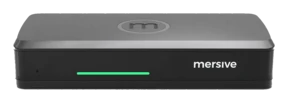
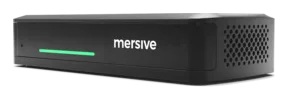
Pro gives busy review rooms more capacity for simultaneous shares and connects the room's camera and mic for hybrid calls. Essentials runs the same Polaris software in a smaller chassis. Choose around the work, the room and the connections you need.
- Around 10 simultaneous workspace sources, with a practical ceiling set by the device's memory.
- The shared workspace for comparing live work from several machines.
- An HDMI source joins the workspace as a tile by default. Direct bypass takes the glass full screen and keeps that feed in the room.
- Link is a software bridge between the laptop in BYOM and the Pro, and the Pro is what controls the room's cameras and peripherals. That is why Link needs a Pro.
- Essentials runs the same Polaris software as Pro: the same workspace, the same cloud, the same security posture. The differences are the chassis, not the platform.
- Around 5 simultaneous workspace sources, with a practical ceiling set by the smaller device's memory.
- Drives a single display.
- No USB input for the room's camera and mic, so Essentials does not support Polaris Link or true wireless BYOM.
- Polaris Link is released and included in Pro. Link is a software bridge between the laptop in BYOM and the Pro, and the Pro is what controls the room's cameras and peripherals. That is why Link needs a Pro.
- Link supports Teams at release. Check the hybrid product page for other meeting platforms and their release plans.
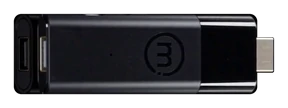
- Polaris Host is prelaunch, expected in Q4 2026 and not orderable yet. It is planned to run the meeting on room hardware, using the native Teams, Zoom, Webex or Meet client.
- Host works with Pro or Essentials. With Pro: Peripherals connect directly to the Pro, so the cables stay at the front of the room. With Essentials: Peripherals cable to the Host, and the Host and the Essentials unit are paired, which means a cable to the table.
Check the product pages for current pricing, terms and availability. Your partner can quote the room setup you need.
Plan for the work and the people reviewing it.
Start with the material you compare, the devices people bring and the way remote participants will join. Then check the content-handling requirements with your IT team.
Compare live sources side by side
Keep the boards, the cut and the reference in the workspace together. Pro's practical ceiling is around 10 simultaneous sources; Essentials is around 5. Both run the same software. Device memory sets those practical ceilings, rather than a software or license limit. Use your own mix of sources in the trial to check the room's performance.
Explore the workspace →Let clients present from their own laptops
A client can join at app.mersive.com with the screen key shown on the display. A supported laptop browser needs no installation or admin rights. Cross-network sharing allows a separate guest network; your IT team should check the network requirements before the first review. Phones share through the Mersive app or a supported native casting protocol.
See cross-network sharing →Understand what happens to shared content
Polaris Cloud does not store workspace content. The room device assembles that content for display without writing it to storage, and overwrites temporary session data when a session ends, including an abandoned session. The Trust Center explains the device, cloud and network controls so your IT team can assess them against your requirements.
Review the Trust Center →Include remote reviewers in the workspace
Remote participants see the workspace laid out by the same code as the room, at their own screen's resolution. Parity covers every source in the workspace, laid out by the same code in the room and in every browser.
Polaris Pro has two wired HDMI input modes, selected by the room administrator. Workspace tile is the default: the input joins the workspace alongside wireless shares and is visible to remote participants. Direct bypass (full-screen pass-through) sends the input straight to the room display, outside the workspace. Remote participants do not receive that feed.
For remote participants to see an HDMI source, use workspace tile mode or share the same device wirelessly.
See how the workspace is shared →Polaris does not have a published end-to-end specification for color management, gamut or calibration. If the room will be used for grading or color approval, test the complete source-to-display workflow with your team before relying on it for that work.
Start a free trialBring a review you already know.
Use a familiar project to test the room: an earlier cut, the current version and the references behind it. Invite someone on a guest network and someone working remotely. Check what each person can share and see, then decide whether the setup fits your review process.
- Compare versions
Keep the source material you discuss most often in view together.
- Include a guest
Test the client laptop and guest network you expect to use.
- Bring in a remote reviewer
Check the shared workspace and the room's wired-input setting.
See it in your own rooms
Test Polaris with your team's devices, source material and guest network. Include a remote reviewer and check the setup against the way you work.
Start a free trial